

Adding a form to a business website can be a great way to improve user engagement, gather information about your visitors, and increase the effectiveness of your online marketing efforts. Whether you want to create a simple contact form or a more complex lead generation form, this article will guide you through the process of adding a form to your business website.

Table of Contents
We at TruVISIBILITY do not offer you any trial periods, nor restrict you in functionality. But it is absolutely free of charge, and for a limited period of time we give fully functional software. So, by registering with a freemium account, you will be able to:
- Create a chatbot that can have up to 100 conversations per month
- Launch email blasts, start drip campaign, etc with 1000 free emails sent monthly
- Send 1000 SMS per month
- Build 1 website including a blog and connect a custom domain
- 1 GB of storage usage
- 1 SSL certificate
- Unlimited API usage
Websites made within a freemium account will have mandatory TruVISIBILITY branding.
Our pricing is simple and flexible! You can adjust the number of conversations your chatbots can have, the number of emails and SMS that can be sent per month, the number of websites you can deploy, and the capacity of your cloud storage.
The Main Steps of Adding a Form to Your Site
It sounds complicated, but adding a form to your website is more beneficial than it is time-consuming.
Research how similar website form companies in your industry utilize forms - which can be surveys or used to collect visitor information - and decide why and how they chose the design and purpose of the form.
Next, follow these steps on how to best add an efficient form to your website.
Determine the Purpose of the Form
Before you start designing your form, it’s important to determine its purpose. Are you looking to gather feedback from customers, collect contact information, or qualify leads? Once you know the purpose of the form, you can start to tailor it to your specific needs.
Choose a Form Builder Tool
There are many form builder tools available online, both free and paid, that allow you to create custom forms without any coding skills. Some popular options include Google Forms, JotForm, Wufoo, and Typeform. Or you can choose a software that has a form tool already available for free, such as TruVISIBILITY. Choose a tool that fits your needs and budget and sign up for an account.
Design Your Form
Once you have selected a form builder tool, you can start designing your form. Most form builders allow you to customize the look and feel of your form, as well as add fields for users to fill in. Make sure to keep the design of your form consistent with your brand’s colors and style.
Below is an example of a simple design. The form is also strategically placed next to this Med Spa's location.
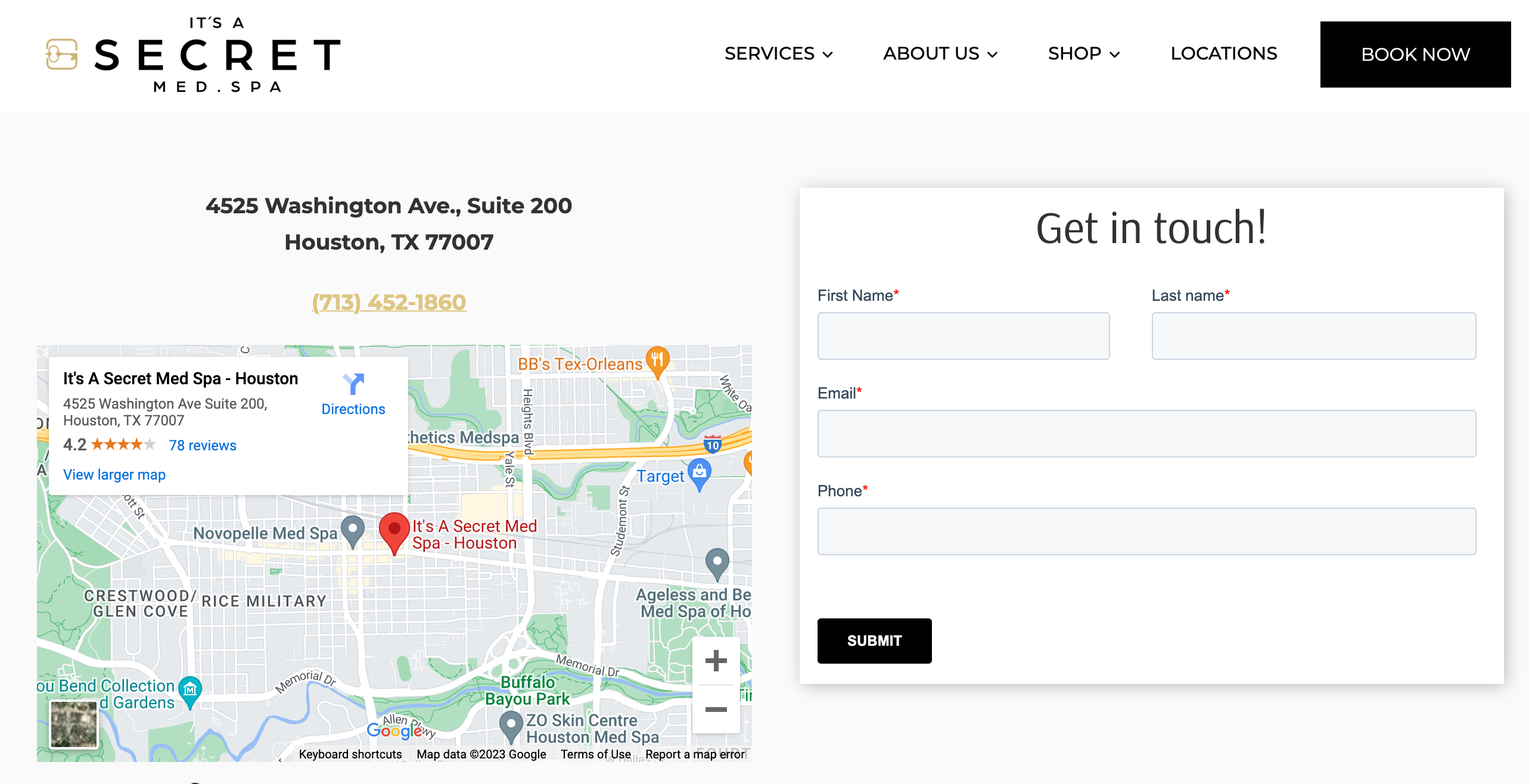
Photo Credit: It's a Secret Med Spa
Decide Where to Place the Form on Your Website
The placement of your form on your website is crucial to its effectiveness. Consider placing it on pages where users are most likely to convert, such as your homepage, landing pages, or product pages. You can also place a form in a pop-up or slide-in to grab users’ attention.
Add the Form to Your Website
Once you have designed your form and decided where to place it, you can add it to your website. Most form builders provide a code snippet that you can copy and paste into the HTML of your website. If you are using a content management system (CMS) like WordPress or Squarespace, you can usually add the form by using a plugin or widget.
Test Your Form
Before you launch your form, it’s important to test it to make sure it is functioning properly. Submit a test entry and make sure that you receive the confirmation message and that the data is being saved in your form builder tool.
Integrate it with Your Email Marketing Software
If you are using the form to generate leads, it’s important to integrate it with your email marketing software. Most form builders allow you to connect your form to your email marketing tool, such as Mailchimp, TruVISIBILITY or Constant Contact, so that new leads are automatically added to your mailing list.
Our pricing is simple and flexible! You can adjust the number of conversations your chatbots can have, the number of emails and SMS that can be sent per month, the number of websites you can deploy, and the capacity of your cloud storage.
Analyze Your Form’s Performance
After your form has been live for a few weeks, it’s important to analyze its performance to see if it’s achieving its intended purpose. Use the analytics provided by your form builder tool to track the number of submissions, conversion rates, and other important metrics. Make changes to the form as necessary to improve its performance.
Easiest Way to Add a Form to Your Site
TruVISIBILITY has made it easier than ever to add a form to your website. You can even choose to simply add a form to only your landing pages as well. Let’s go over the basics of how to accomplish this in minutes (with optional email integration as well).
So, how do you add a form to your site using TruVISIBILITY’s Sites app? It’s very much like how you would add a form to a landing page. Here are the 3 important steps you need to complete a form on any page (or pages) on your website.
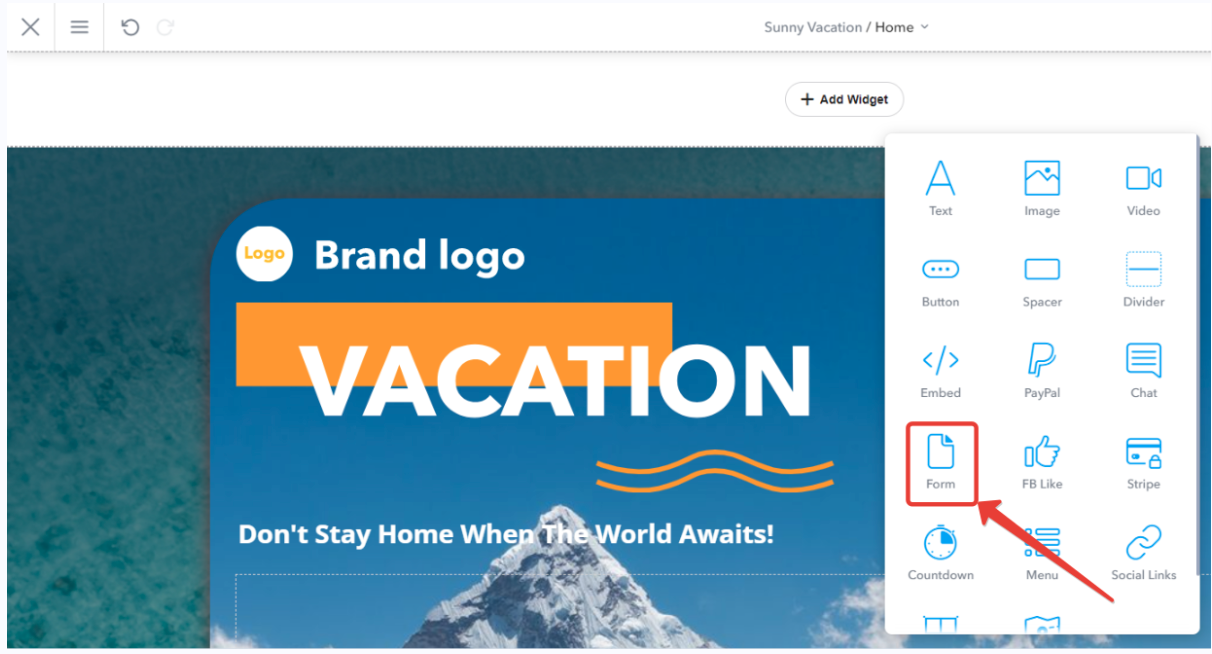
Form Widget
Add the form widget when editing your site or webpage. The widget can be found in the Site Editor menu. You can add the form widget to any section of your site. Even the header and footer!
Edit Form
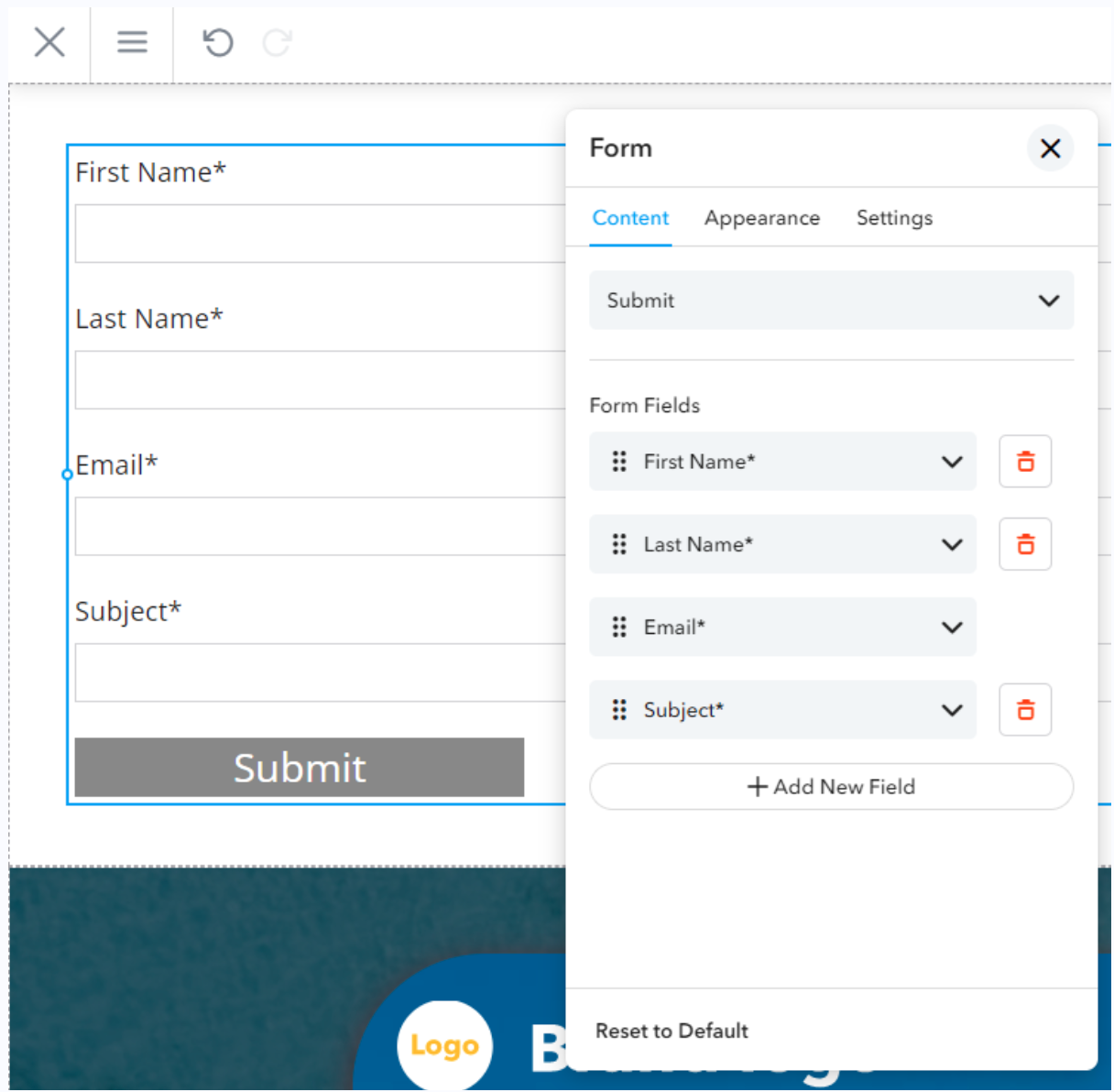
Next, you’ll want to edit the form by clicking the edit button. This will take you to the form settings menu, which will allow you to change the appearance, content, and other elements of the form.
You can see here that, under the Content tab, you can create any kind of fields you want your visitors to fill out.
Set Up Autoresponders
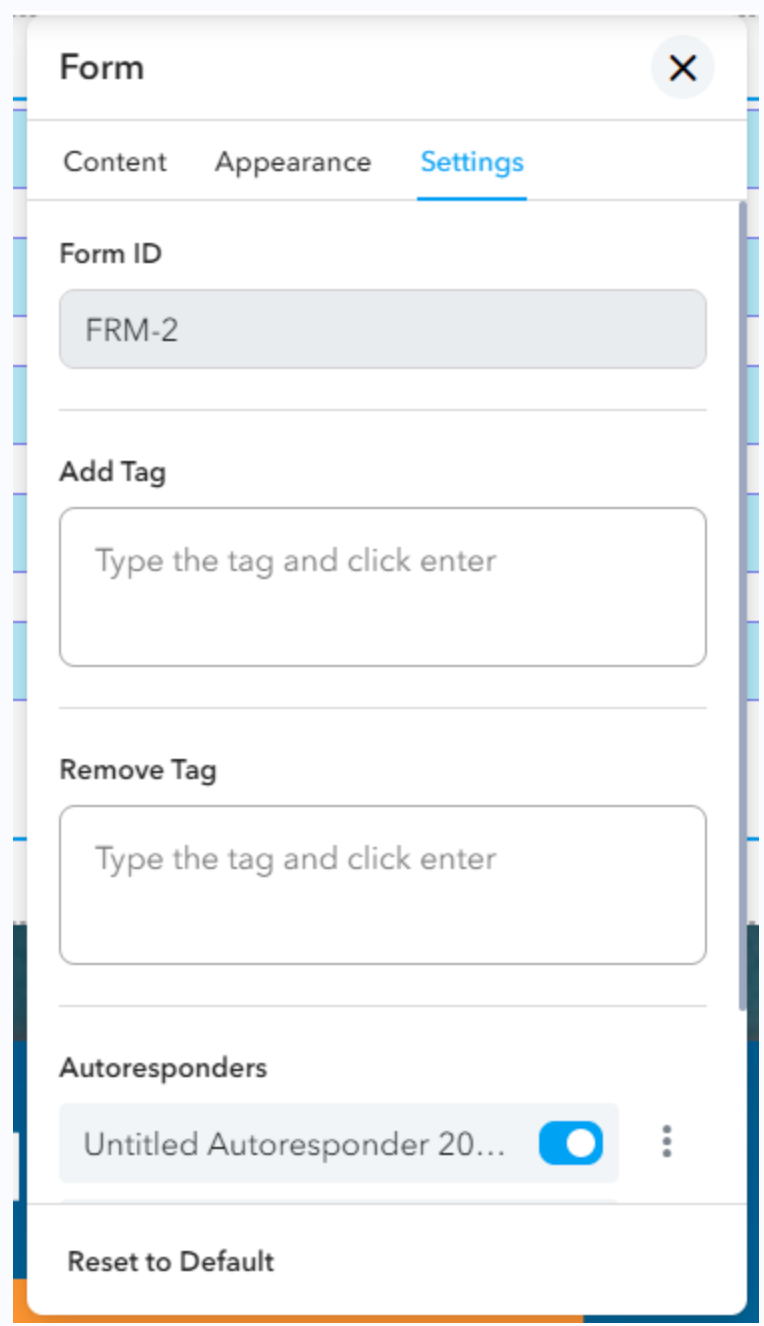
You’ll likely want to set up autoresponders and connect your email to this form. This way, the emails you collect can be automatically filed under your contacts. Also, the new lead can get a welcome message from your business!
To learn more about adding and editing a form to your website, check out TruVISIBILITY’s quick guide on how to do this through their Sites app here.
Conclusion
In conclusion, adding a form to your business website is a simple but effective way to engage with your visitors, gather valuable information, and improve your marketing efforts. By following the steps outlined above, you can create a form that is tailored to your specific needs and will help you achieve your business goals.
Our pricing is simple and flexible! You can adjust the number of conversations your chatbots can have, the number of emails and SMS that can be sent per month, the number of websites you can deploy, and the capacity of your cloud storage.
Related articles


Want to receive more articles?
Sign-up for our weekly newsletter to receive info that will help your business grow